Add dosage date
- For each Immunization, the dosage date can be added by clicking ‘Add Dosage Date’ option.
- On clicking the ‘Add Dosage Date’ option. A popup will display (Figure 15) where the immunization number can be chosen from the drop down, date can be selected, and the dosage taken Certificate can be uploaded in pdf /docx/ jpeg/png format.
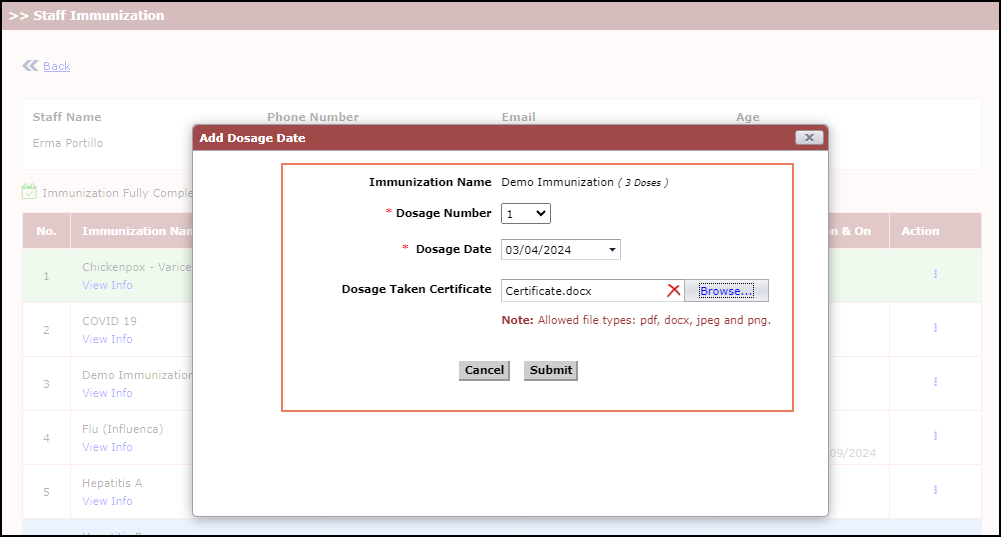
- On clicking the ‘Submit’ button (Figure 15), the added immunization will be listed in the ‘last dosage’ column and the next dosage date calculated based on the set frequency will be indicated in the ‘next dosage’ column (Figure 19).
NOTE:
- For a recurring dose, only the dates will be populated in the last and next dosage date columns and for a non-recurring dose, the dates along with the dose number will be displayed
- Same applies to the Add dosage date popup, where only while adding the non-recurring dose the dosage number dropdown will be displayed