
Introduction
Companies need a way to setup and configure access roles and their authorization privileges in OnCare. This feature will allow a Company “Super User” to setup roles and assign specific authorization privileges to users within the company. Authorization privileges associated with a role will control page level access in the application and location data access on a per user basis for multi-location roles.
There will be 8 default roles created in OnCare. The permissions, role names and role type fields for the default roles except staff will not be editable but viewable in the OnCare application.
- Company Super User - Is the highest of the hierarchy. This role will have access to all modules and all installations in that company.
- Company Admin - Same as Company Super User, but does not have access to the Administrative Functions.
- Base Admin - Same as Company Admin, but will have access to the specific Installation in the Company.
- Location Director - This role will have access only to the specific Center.
- Staff - This role will have access to view their records and the Time / Attendance Tracking module.
- POS User - This role will have access only to the POS module.
- Parent - This role will access only to the Parent Portal.
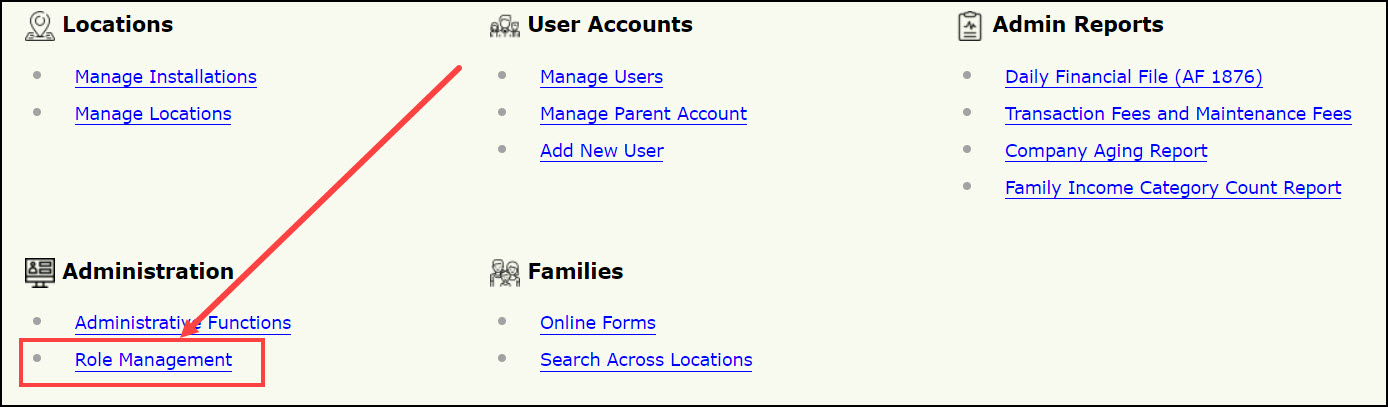
Home Page
- Click Role Management in the Home page. The Role Management page will be displayed:
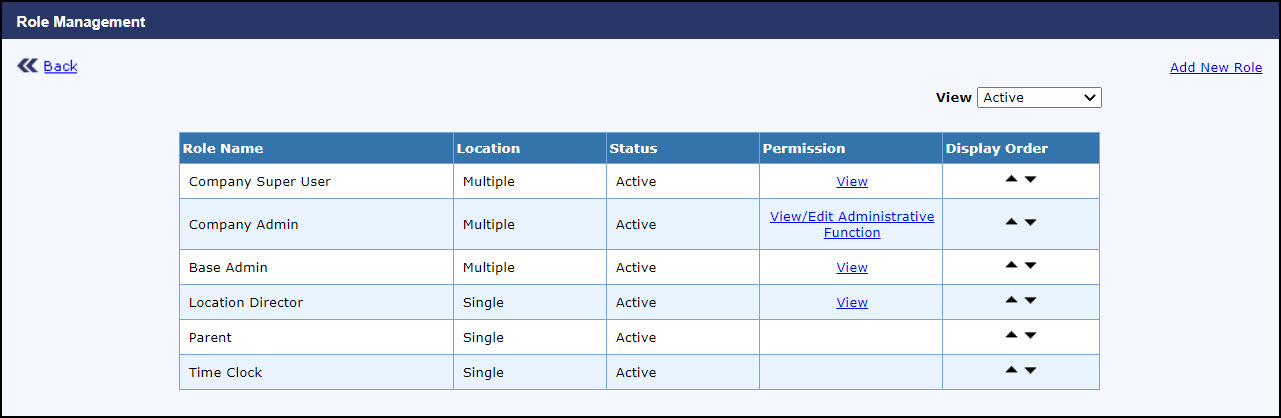
Role Management Page
This module can be accessed by,
- Company Super User
Note: The customized role can be accessed based on the permission set.