
Add New Role
To add / edit the roles,
- Click Add New Role in the Role Management page, the Add/Edit Role Name and Location page will be displayed:
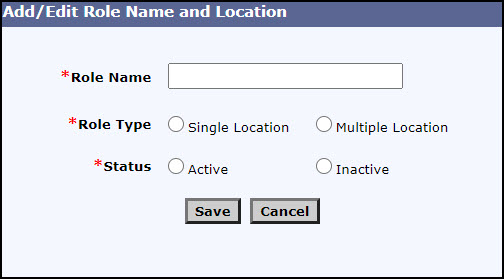
Add/Edit Role Name and Location Page
- Enter the new role in Role Name. Mandatory field. Cannot exceed maximum of 50 characters.
- Select the type of role as single location or multiple locations from the Role Type option.
Note: Multi-location roles cannot be changed to single location roles after a user has been assigned to the role. On such scenarios, the Role Type option buttons will be disabled.
A single location role can be changed to a multi-location role. The User Management page will then allow multiple locations to be assigned to a user as opposed to a single location.
- Select the status of the role from the Status option. The status cannot be changed to Inactive when one or more users are associated with that particular role name.
- Click Save to add the new role. A success message will be displayed. To cancel the addition and return to Role Management page, click Cancel.